Adjusting the notification sound of your Ring Doorbell can provide a better experience and ensure you’re aware of alerts immediately. Customizing alerts allows you to distinguish between different notifications and tailor your device settings according to your preferences, whether you’re using Android or iPhone.
Why Change Your Ring Doorbell Notification Sound?
Changing your notification sound is not just a matter of personal preference; it’s practical. A distinct notification sound helps you quickly identify alerts, especially if you have multiple smart devices. This way, you can prioritize which devices need your immediate attention. Differentiating sounds for various alerts from a busy household or important security notifications can be very useful.
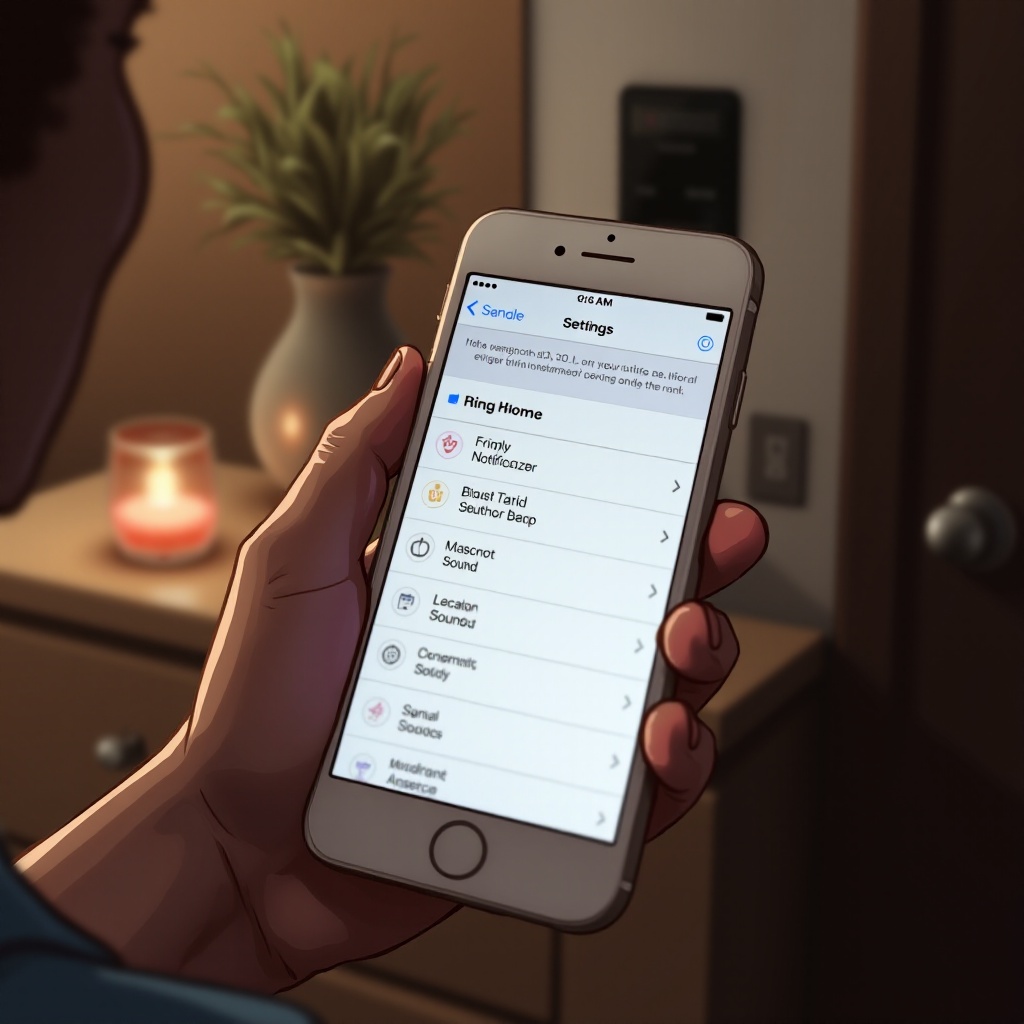
Steps to Change Notification Sound on Android Phones
Android users can follow a straightforward process to change their Ring Doorbell notification sound:
- Open the Ring App: Start by unlocking your phone and tapping the Ring app icon.
- Access the Menu: Tap the menu icon, typically represented by three horizontal lines, in the upper left corner.
- Navigate to Settings: Scroll and tap on ‘Settings’.
- Select the Device: Choose the Ring Doorbell for which you want to change the notification sound.
- Select Alert Settings: Tap on ‘Alert Settings’.
- Change Notification Sound: Choose a new notification sound from the options provided. Confirm your selection.
Customizing notification sounds on Android allows flexibility to revisit and adjust these settings based on changing preferences.
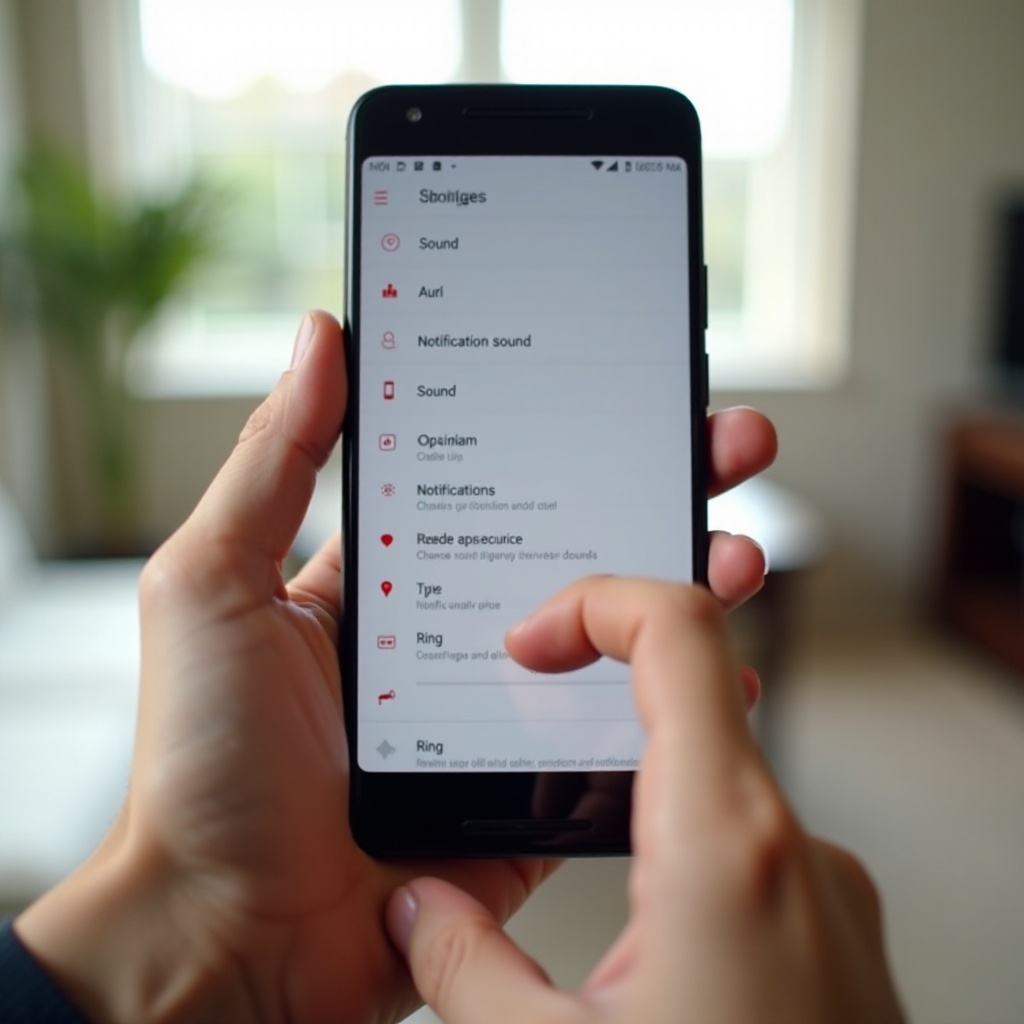
Steps to Change Notification Sound on iPhone
iPhone users can also personalize their Ring Doorbell notifications with ease:
- Open the Ring App: Tap the app icon on your home screen to open.
- Go to the Main Menu: Tap the menu icon located at the top of the screen.
- Find Device: From the list, select your Ring Doorbell.
- Access Alert Settings: Tap ‘Alert Settings’.
- Select Notification Sound: Choose a new sound from the options available. Confirm your selection.
Custom notification sounds enhance personalization and practicality, helping you quickly recognize necessary alerts. While the options might vary slightly on iPhone compared to Android, customization remains simple and practical.
Advanced Customization Options
For those seeking further personalization, advanced options are available:
- Using Custom Sounds: Some phones enable you to upload custom notification sounds. Check your phone settings for this capability.
- Setting Priorities: Assign specific sounds to different types of alerts, like motion alerts versus doorbell presses.
Exploring advanced settings enhances user experience by ensuring your Ring notifications are tailored to your needs and stand out when necessary.
Troubleshooting Common Issues
If you encounter issues when changing notification sounds, consider the following troubleshooting steps:
- Notification Sound Not Changing: Ensure both the Ring app and your phone software are updated. Restart the phone to resolve minor glitches.
- App Not Responding: Check your internet connection. If necessary, force close the app and reopen it.
If these steps do not resolve the problems, contact Ring support for further assistance, targeting device-specific solutions.
Conclusion
Changing your Ring Doorbell notification sound can enhance your interaction with the device, ensuring you stay alert and responsive to important notifications. By following these steps, you can easily customize your alerts on both Android and iPhone, providing a smoother and more efficient smart home experience. Experiment with different sounds and settings to find what works best for your personal and household needs.
Frequently Asked Questions
How do I find different notification sounds for my Ring Doorbell?
Explore options within the Ring app and your phone’s sound settings. Some apps offer downloadable additional sounds.
Why is my notification sound not changing?
Ensure all apps and devices are updated. Restarting your phone can also resolve this issue.
Can I set different sounds for different Ring alerts?
Yes, you can set different sounds for specific alerts, such as motion detection or doorbell ring, to prioritize notifications.