Introduction
Transferring videos between different devices can be challenging due to compatibility issues. If you’re looking to send a video from Samsung to iPhone, you’re not alone. Many users find themselves puzzled when switching or sharing content between Android and Apple devices. This guide will walk you through several practical methods to accomplish this task successfully without compromising video quality.
Whether using apps, cloud services, or transfer tools, our guide will detail the steps needed to ensure your videos are transferred efficiently and clearly.
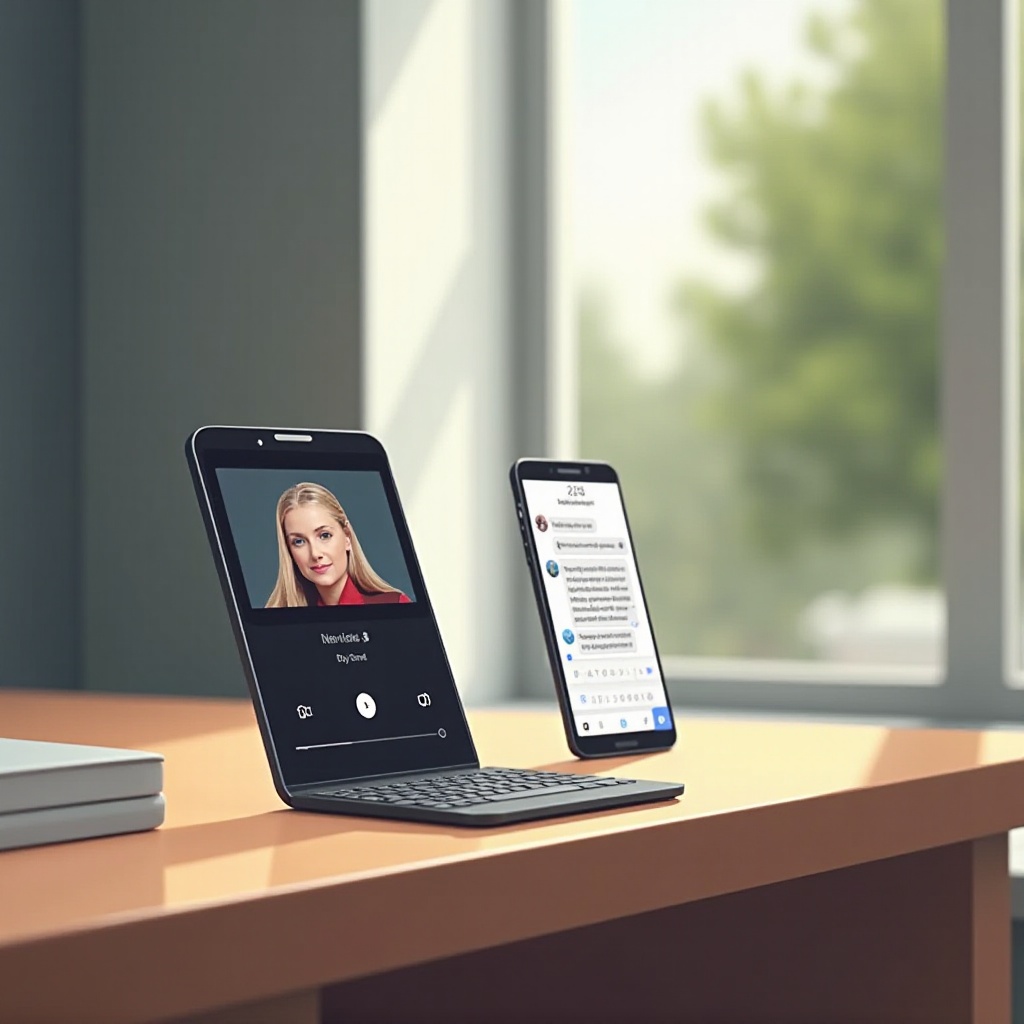
Understanding Video Formats for Samsung and iPhone
Video compatibility plays a significant role in transferring files between devices. Samsung and Apple devices, powered by different operating systems, often utilize different video formats, which can lead to conversion issues.
Common Video Formats for Samsung
Most Samsung devices record and save videos in formats like MP4, 3GP, or MKV. These formats are widely used across various Android devices due to their efficient compression methods and good quality-to-size ratios.
Compatible Video Formats for iPhone
Apple prefers formats like MOV and certain MP4 codecs, aligning with its ecosystem’s standards. iPhones may not natively support MKV or 3GP formats without a compatible app, making direct transfers occasionally problematic.
Understanding these format differences helps prepare for potential conversion needs when transferring videos, aiding in a seamless process.
Method 1: Using Third-Party Apps
Third-party apps can bridge the gap between Samsung and iPhone transfers. Their popularity stems from ease of use and effective functionality in transferring data between devices running on different operating systems.
Recommended Apps for Seamless Transfer
- SHAREit: Known for its fast transfer speeds and wide compatibility, SHAREit is a favorite among users.
- Xender: Offers quick and easy file sharing without the need for cables or internet.
- Send Anywhere: Provides security features like encryption in addition to file transfer capabilities.
Step-by-Step Guide for Using SHAREit
- Install SHAREit on both your Samsung and iPhone from their respective app stores.
- Open SHAREit on your Samsung device and select the video you want to send.
- Choose the ‘Send’ option in the app.
- Open SHAREit on your iPhone and tap ‘Receive.
- Scan the QR code or use the radar option within the app to connect both devices.
- Once connected, the video transfer will begin automatically.
Using these applications, transferring videos becomes a straightforward task, alleviating compatibility concerns.
Method 2: Sending Videos via Cloud Services
Cloud services like Google Drive and Dropbox offer reliable solutions for transferring videos. They allow you to upload your content from one device and access it from any other device with internet connectivity.
Using Google Drive
- Open Google Drive on your Samsung device and log in to your account.
- Tap the ‘+’ icon to upload your desired video.
- Once uploaded, open Google Drive on your iPhone.
- Log in to the same account, locate your video, and download it to your device.
Using Dropbox
- Install Dropbox on both devices and sign in with the same account.
- Upload the video from your Samsung phone.
- Access Dropbox on your iPhone and locate the uploaded video.
- Download it to your iPhone’s gallery.
Cloud services ensure your videos are accessible anywhere at any time, making them suitable for those frequently transferring content between devices.

Method 3: File Transfer Tools
File transfer tools can accomplish the job efficiently when other methods are inconvenient. Apps designed specifically for transferring data between devices offer tailored solutions for a smooth experience.
Transfer via Samsung Smart Switch
Samsung Smart Switch is primarily for transferring content when upgrading phones, but it’s also useful for video transfers.
- Connect both devices to a computer.
- Start Samsung Smart Switch on the Samsung device.
- Select the video you want to send.
- Use iTunes to sync the video onto your iPhone.
Using iTunes for Video Transfers
- Connect your iPhone to a computer running iTunes.
- Drag the video from your Samsung device into your iTunes library.
- Sync the video to your iPhone.
These tools utilize direct transfers and are especially useful when transferring larger files, preserving video quality throughout the process.
Troubleshooting Common Issues
While transferring videos, you may encounter issues such as failed transfers or degraded video quality. Here’s how to tackle them.
Maintaining Video Quality
- Use high-speed internet connections for cloud transfers.
- Ensure your video is in a compatible format to avoid quality loss during conversion.
Resolving Transfer Failures
- Confirm both devices have sufficient storage space.
- Restart devices and applications if transfers fail midway through the process.
Resolving these common issues ensures a hassle-free transfer experience with minimal disruptions.

Conclusion
Transferring videos from Samsung to iPhone doesn’t have to be daunting. By using third-party apps, cloud services, or file transfer tools, you can effortlessly move your videos between these devices. Each method provides unique benefits, allowing you to choose based on your specific requirements. Whether prioritizing speed, security, or ease of use, our outlined solutions will meet your needs.
Frequently Asked Questions
What is the best app for transferring videos between Samsung and iPhone?
Several apps are effective, but SHAREit and Send Anywhere are among the most reliable options for fast and secure transfers.
Can I send videos via Bluetooth from Samsung to iPhone?
No, Bluetooth transfers are not supported between Android and iOS devices due to different operating systems and compatibility constraints.
How can I ensure that video quality is not compromised during transfer?
To maintain video quality, use high-speed internet connections, ensure files are transferred in compatible formats, and opt for reliable transfer methods like cloud services or direct cable connections.