Introduction
Connecting your Google Pixel headphones to a Thinkpad can seem daunting, but with the right guidance, it becomes a straightforward task. Whether you choose a wired connection or go wireless via Bluetooth, ensuring your devices work harmoniously is crucial. This guide will help you maximize your headphones’ performance, whether you’re taking calls for work or enjoying music in your downtime.
Understanding Compatibility and Connectivity Options
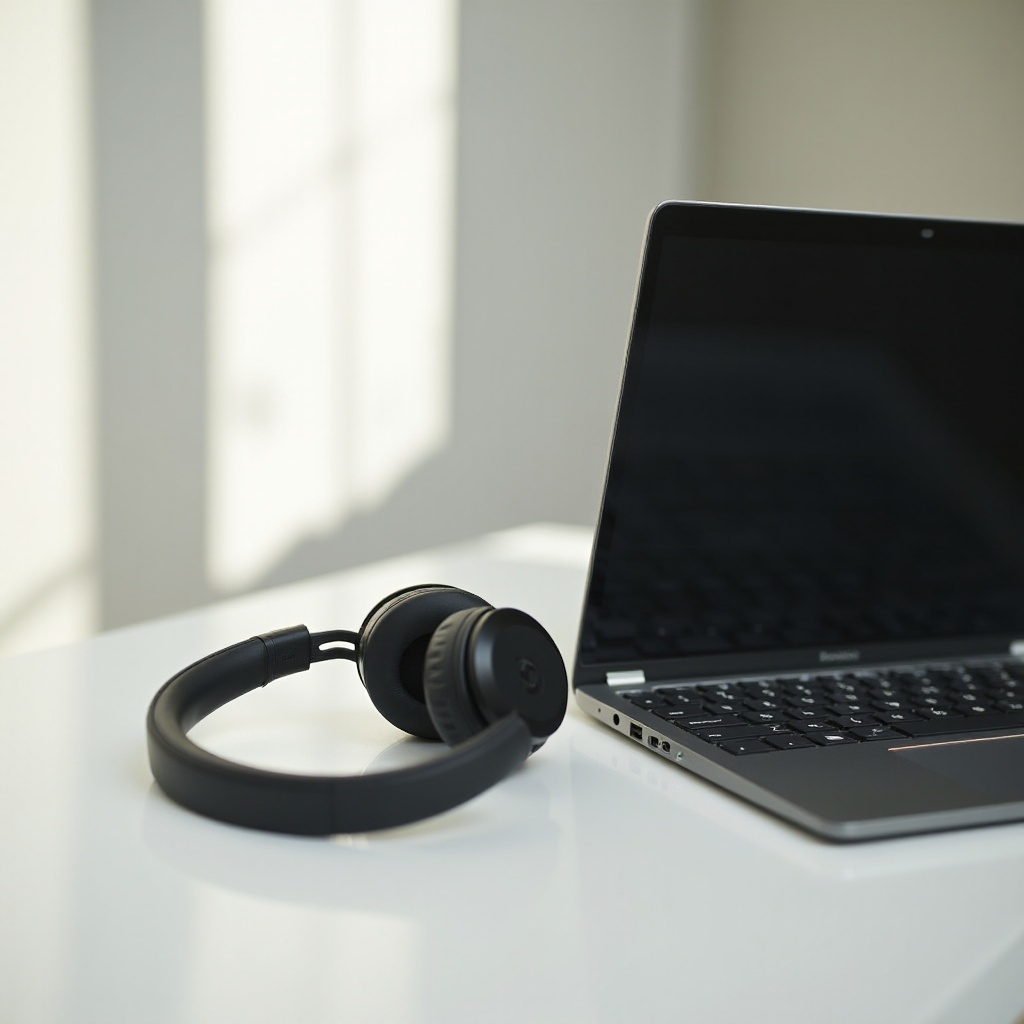
To ensure a seamless connection, understanding compatibility is essential. Google Pixel headphones come in two varieties: wired and wireless (Bluetooth). Your Thinkpad model’s available ports and Bluetooth capabilities will dictate the connectivity options you have.
-
Types of Google Pixel Headphones: Identify whether you have wired or wireless headphones. Wired versions connect via a standard audio jack, whereas wireless ones require Bluetooth pairing.
-
Thinkpad Models and Port Availability: Most Thinkpads are equipped with standard headphone jacks. Newer models often support Bluetooth, so check your model’s specifications to confirm compatibility.
-
Bluetooth and Wired Connection Options: Bluetooth offers the advantage of mobility, while a wired connection ensures stability and avoids battery concerns.
As you understand these compatibility factors, you can choose the most effective method to connect your devices.
Connecting Google Pixel Headphones via Bluetooth
If you have wireless headphones, connecting via Bluetooth is efficient and convenient. Here’s how:
-
Enabling Bluetooth on Thinkpad: First, ensure Bluetooth is turned on. Access the Bluetooth settings from the system tray or through the Windows settings menu.
-
Pairing Your Headphones: Activate pairing mode on your Google Pixel headphones. Instructions for this differ by model but usually involve holding down the power button. Locate your headphones in the available devices list on your Thinkpad and connect.
-
Troubleshooting Bluetooth Issues: If issues arise, try these solutions:
- Ensure there is no interference from other wireless devices.
- Keep your headphones within a reasonable range of the Thinkpad.
- Restart the Bluetooth connection on your Thinkpad.
A Bluetooth connection provides the freedom to move without worrying about tangled wires. If Bluetooth does not suit your needs, consider a wired connection.
Using Wired Connection with Google Pixel Headphones
A wired connection offers simplicity and reliability. Here’s how you can set it up:
-
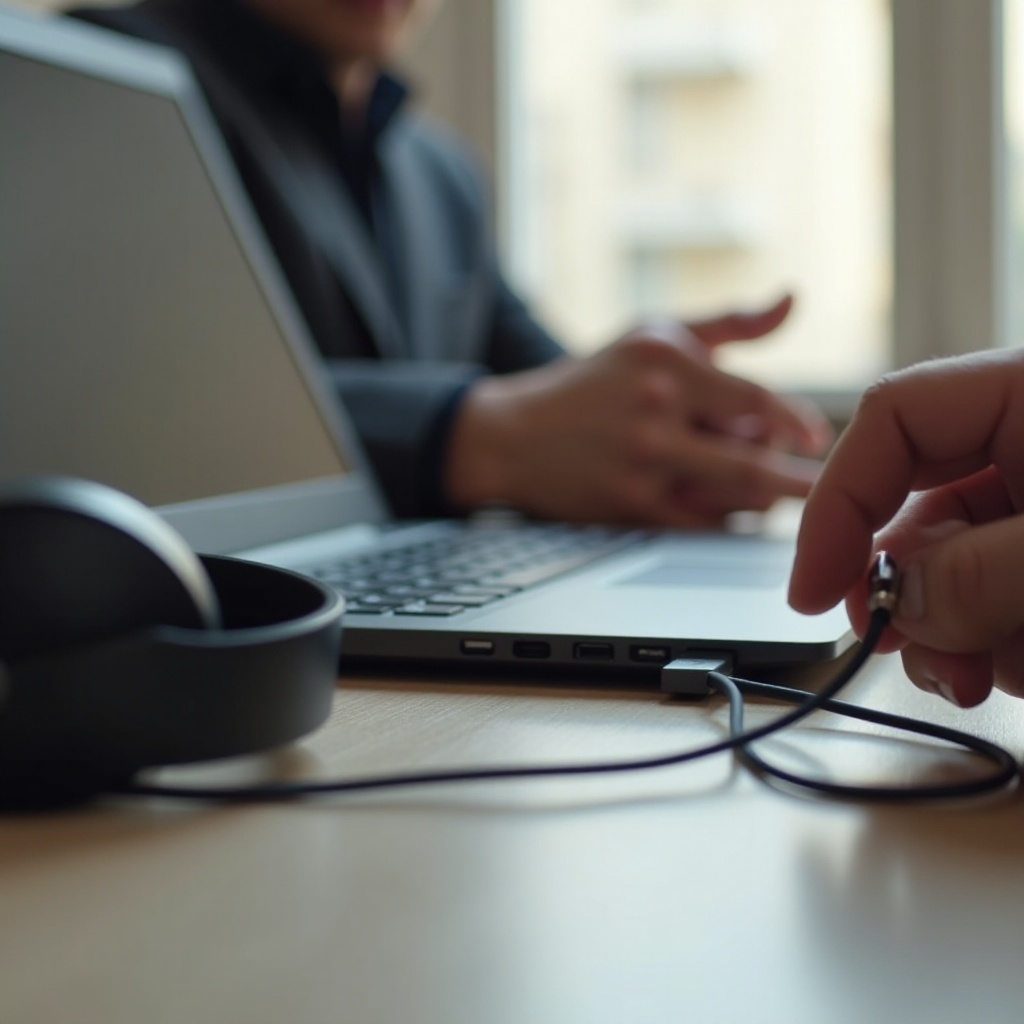
Locating the Headphone Jack: Find the headphone jack on your Thinkpad, typically located on the side or front. Insert the headphone plug securely.
-
Ensuring a Secure Connection: Ensure the headphone plug is fully inserted to avoid connectivity disruptions. A loose connection can result in distorted sound or loss of audio.
-
Addressing Audio Interference: If you experience static or noise, check for damage or debris in the headphone jack. Use appropriate adapters if necessary to improve sound quality.
This method ensures continuous sound without battery constraints, perfect for long listening or working sessions.
Optimizing Audio Quality on Thinkpad
Once your headphones are connected, optimizing the audio quality can enhance your overall experience:
-
Adjusting Windows Audio Settings: Access the sound settings on your Thinkpad. Adjust volume levels and balance according to your preferences to achieve optimal sound quality.
-
Enhancing Sound with Third-Party Apps: Consider downloading apps that enhance audio quality by providing tools such as equalizers that let you customize your listening experience.
-
Equalizer Settings for Better Audio: Use available equalizer settings to fine-tune aspects of sound like bass and treble to suit your tastes. This customization leads to a richer audio experience tailored to your preferences.
With quality settings, the headphones will deliver the best possible performance for any audio content.
Troubleshooting Common Connection Issues
Even with careful setup, you may encounter connectivity challenges. Here are solutions to common problems:
-
Bluetooth Connection Problems: Ensure there are no physical obstructions between the headphones and Thinkpad. If issues persist, remove the device from the pair list and re-pair the devices.
-
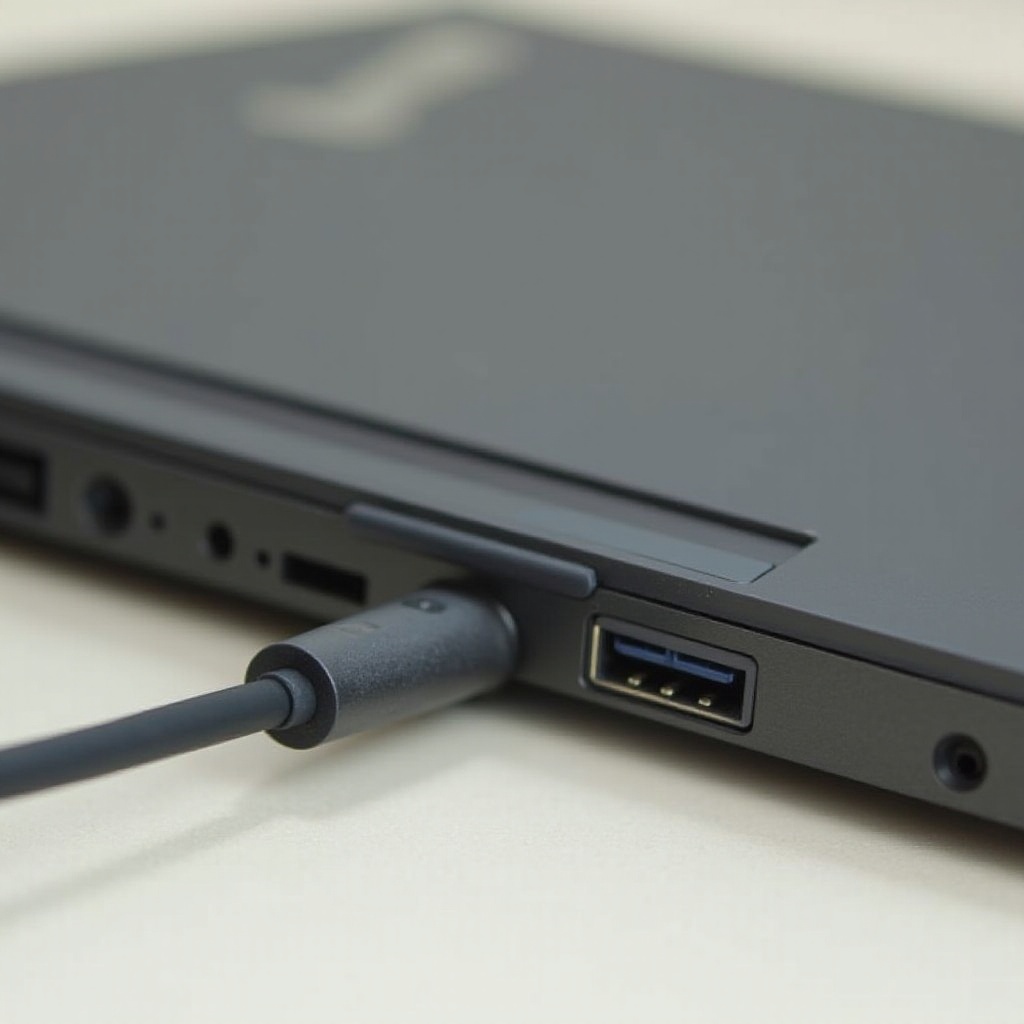
Wired Connection Issues: If audio is choppy or missing, inspect the headphone jack for debris. Try replacing the audio cable if issues continue.
-
Updating Audio Drivers on Thinkpad: Outdated drivers can cause audio problems. Regularly update your device’s audio drivers through the device manager to ensure compatibility and resolve issues.
Addressing these potential problems assures that your headphone connection remains steady and reliable.
Conclusion
Mastering the connection between your Google Pixel headphones and Thinkpad enhances both productivity and leisure experiences. By ensuring compatibility, choosing suitable connection methods, and maintaining your devices, you can enjoy superior audio quality wherever you are.
Frequently Asked Questions
How do I reset my Google Pixel headphones?
Usually, you can reset your headphones by holding the power button down or following specific instructions in the user manual.
What should I do if my Thinkpad doesn’t detect my headphones?
Restart both devices and try re-pairing. Check Bluetooth settings or connection status, and update your audio drivers.
Can I connect multiple Bluetooth devices to my Thinkpad simultaneously?
Yes, but only some Thinkpad models support multiple simultaneous Bluetooth connections. Reference the product manual for details.